QR code maker for Google reviews
Find your business, copy your Google review link, and print a sign for your counter, tables or cards. Free, with no sign-up.
Find your business
We look it up on Google, the same list you see in Google Maps. Or paste your review link
Type the name as it shows on Google Maps, and add the town if there are several. Or paste your review link
- Type the name the way it shows on Google Maps.
- Add the town or the street, or check the spelling.
- A brand-new Google profile can take a few days to show up.
- Sign in to the Google account that manages your business.
- Search Google for your business name. Your profile’s tools show at the top.
- Choose “Ask for reviews”, then “Copy link”, and paste it here.
Five signs to choose from
- Counter sign
- Table card
- Business cards
- Stickers
- Window poster
Your business
It’s had a busy day. You can still make your sign now with your own review link, or create a free account and choose your business with your Google sign-in.
We can’t look your business up right now, so type its name the way you’d like it on the sign. Then choose your sign below.
Type its name the way you’d like it on the sign. Then choose your sign below.
Your review link and QR code
Opens Google’s review form for your business. It goes straight to Google, never through us, so it never stops working. Test it
Make a sign
- Your logo, in your exact brand colours
- No Truewidgets line
- Print-shop files, with bleed and crop marks
- A3 and A2 posters
For this business, as many signs as you like, again whenever you need them. No account needed. Included in Pro.
Your sign is downloading
. Didn’t start?
Before you print
- Print at 100% (“Actual size”), not “Fit to page”, so the QR code keeps its size.
- Thick paper or card stands up better, and matte won’t shine under the lights.
- Scan it with your own phone before you frame or laminate it.
- Put it where people wait: by the till, on the tables, by the door.
Your QR code goes straight to Google, so it keeps working for good.
Show your Google reviews on your website
Your best reviews, live on your own site and updated every day. Free plan, no card.
Create free account → Go to your dashboard →See how many people scan it
A free account gives you your own review link and QR code. It counts the scans each month, and the reviews people leave show on your website too.
How it worksNow show those reviews off
Put your Google reviews on your website
The reviews your sign brings in show on your own site too: your best ones, with your average, updated every day. Free plan, no card.
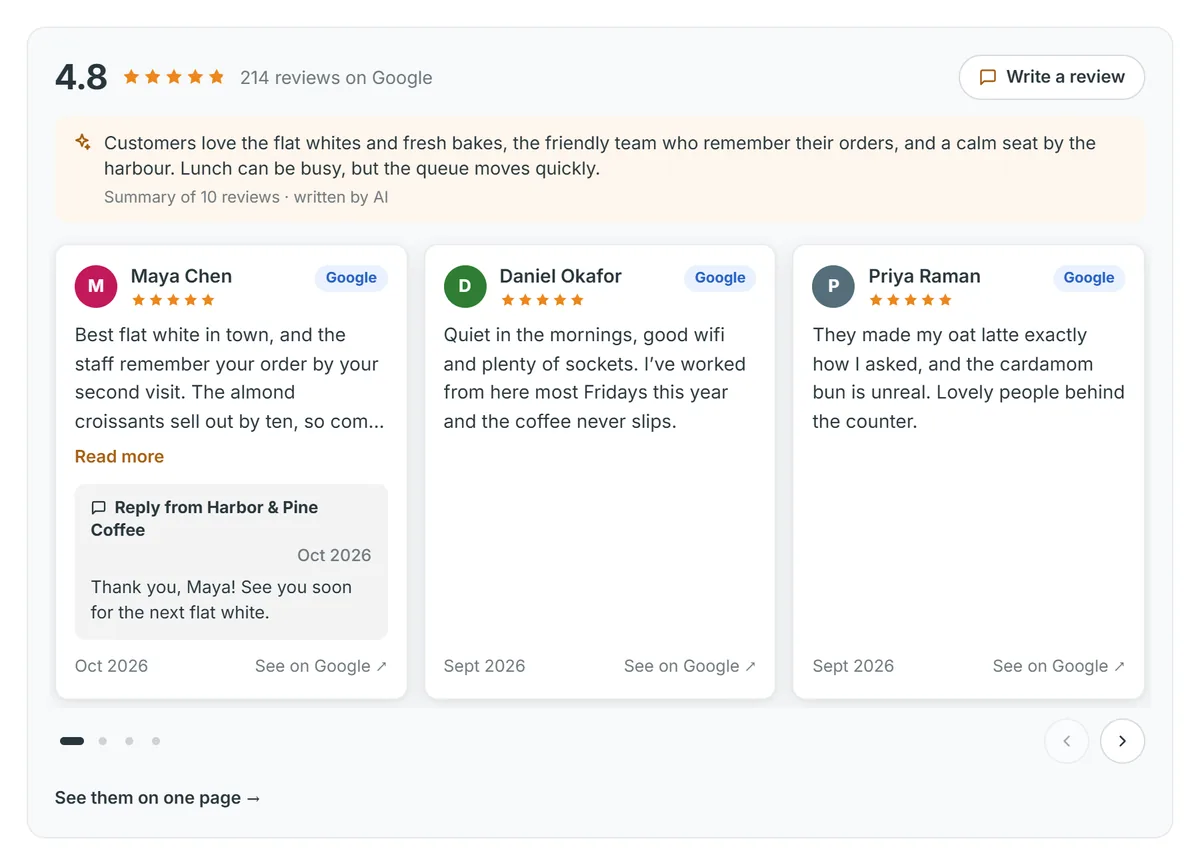 Example café and reviews
 See how many people scan it
A free account gives you your own review link and QR code. It counts the scans each month, and anything a customer wants to tell only you comes to you privately.
How it works
From your business name to a sign on the counter
Find your business
Type its name and town, and pick it from Google’s list. Or paste the review link from your Google Business Profile.
Get your link and QR code
Both open your business’s review form on Google. Copy the link for emails and messages, or download the QR code for your own designs.
Print a sign
Pick a sign, a headline and a colour, then download a PDF that’s ready for your own printer.
Signs for every spot
Five ways to ask, all free
Honest comparison
Google’s own review link, and what this adds
Google gives every business a review link and a QR code in its Business Profile. If that’s all you need, use it. This page adds the signs.
In your Google Business Profile
From Google, free
- Yes: A link to your review form
- Yes: A plain QR code to download
- No: You sign in as the owner, on a computer
- No: No printable signs
Here
Free, no sign-up
- Yes: The same review form, straight from Google
- Yes: QR code as PNG or SVG
- Yes: Find any business by name, on any device
- Yes: Five print-ready signs in your colour
Google also used to make free “Review us on Google” stickers and posters, in its Marketing Kit. That closed in 2023, and nothing has replaced it.
Good to know
What to write on a review sign
Google has rules about asking for reviews, and so does consumer law in many countries. Our ready-made headlines follow them.
Do
- Ask every customer the same way: “How did we do?”
- Keep it short. One line and the QR code is plenty.
- Put it where people wait: the till, the tables, the door.
Don’t
- Offer anything for a review: no discounts, prizes or free drinks.
- Ask only happy customers (“Loved it? Review us!”).
- Tell people what to write, or ask for five stars.
- Press people before they leave, or give staff review targets.
Questions
Google review QR codes, answered
Is it really free?
Yes. Making and printing signs is free, with no sign-up and no email to give. Free signs carry a small “Made with truewidgets.com” line.
What does the Pro sign pack add?
For $4.99 once: your logo, your exact brand colours, no Truewidgets line, print-shop files with bleed and crop marks, and A3 and A2 posters. It’s for one business, as often as you like. Pro customers get it included, with codes that count the scans for each sign.
Will my QR code ever stop working?
No. It opens Google’s own review form for your business and never goes through us, so it keeps working even if you never use Truewidgets again.
Do my customers need a Google account?
Yes. Google asks people to sign in before they post a review. Any Google account works, not only Gmail, and most phones are signed in already.
Can I put the Google logo on my sign?
Our signs leave it off. Google lets a business add its official G when asking for reviews, with strict rules: the official file only, unchanged, never the biggest thing on the sign, and never beside stars. Saying “Review us on Google” in words is always fine.
How big should the QR code be?
At least 2 cm (about ¾ inch) across for scanning up close. A good rule: one tenth of the distance people scan from. On our counter signs, table cards and posters the code is 6 to 9.5 cm wide; on business cards and stickers, which people scan up close, about 2.5 to 3.5 cm.
I have more than one location. Can I make a sign for each?
Yes. Each location has its own review link, so make a sign for each one.
Where do I find my review link without this tool?
Sign in to the Google account that manages your business, search Google for your business name, and choose “Ask for reviews”.
Can I get my money back on the pack?
Yes. If your signs don’t print right, tell us and we’ll fix it or refund you.
Can I offer a discount for a review?
No. Google doesn’t allow rewards for reviews: it removes them, and it can freeze a profile’s new reviews and show customers a warning. In the UK, the US and the EU, rewards for reviews can also break consumer law.
Now show those reviews off
Put your best Google reviews on your own website, updated every day. Free plan, no card.
Create free account → Go to your dashboard →